Educational outcomes
Student:
- explains how to design and implement graphical interfaces using natural language (understanding);
- identifies and corrects errors in the source code that implements the above interfaces (understanding).;
- lists the constructs implemented in the source code (understanding);
- implements the aforementioned constructs using the selected programming language (application);
- indicates differences in functionality between two selected programs based on fragments of source code (analysis);
- creates a program that implements specific business requirements using the structures learned in the lectures (synthesis);
Justification
Modern programming languages are mostly based on the object paradigm. Therefore, its practical understanding is a necessary basis for working in this profession. Moreover, programmers often make systems based on analytical materials. And these largely use object-oriented graphical notations (such as UML). During this and the next lessons, you will deepen your theoretical bond, but first of all you will learn how to implement different concepts from object-orientness. This will allow you to design and implement modern business applications.
User interface design
Graphical user interface design can be done in several ways. Regardless of the method used, please observe the usability guidelines (see previous lesson). The most popular approaches use diagrams containing forms an/or windows. They include individual widgets (visual gadgets- GUI elements/controls) represented as geometric figures or existing controls (eg Swing or Windows Forms). The project should include information about:
- placement of individual items,
- their description,
- the widget type (eg Combo Box, List Box),
- how to react to window size changes (this is a very important aspect, unfortunately quite often neglected),
- possible use of hints (tooltips),
- any additional information,
- read-only control
- how to select data, eg in ListBox, you can allow multiple selections,
- behavior of the window (modality).
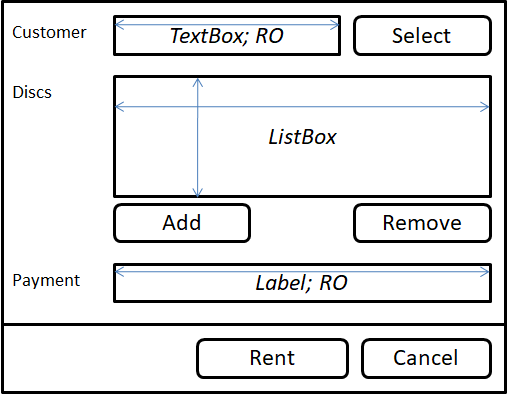
The above figure shows the design of a form that allows rental of film to customers. At the time of its creation, we have adopted several assumptions about notation. Naturally, this is not a formal standard, but a certain arbitrary decision. Depending on your needs, you can make your own modifications, especially verbal descriptions could be replaced with icons. Assumptions:
- We have described the type of controls that we want to use. It is worth noting that, for example, the abbreviation ROstands for "Read Only". In other words, the user is not able to directly modify the content of the widget, for example, to change the client, you have to select it with the appropriate function. Similarly, the rental fee is billed by the system and can not be manually modified.
- Rectangles with rounded corners are buttons.
- Thin lines with arrows show how the control is supposed to react to changes in the size of the entire window:
- A single horizontal line means that the control only expands (does not change its height),
- Single vertical and horizontal lines tell us that the widget should change its height and width. Remember that if there were more than one element on the label, it would be necessary to establish a mutual relationship when scaling the window, eg proportionally (50% - 50% or 80% - 20%).
Depending on the "typicalness" of the given window, additional designs or verbal descriptions may be required.
This type of project is best for all windows in the application. Thanks to that, we will avoid surprises in the form of unthinkable format. The exception may be a library file that automatically generates a GUI based on a data model. In this situation, the general rules for creating individual elements are "put" inside the library. This approach significantly reduces the amount of work required to design and implement a GUI. This is usually done at the expense of the solution's generality. Generated windows are quite similar to each other and may not always be suitable for a particular type of application. That's why this approach works best for typical business applications (see the next lesson).
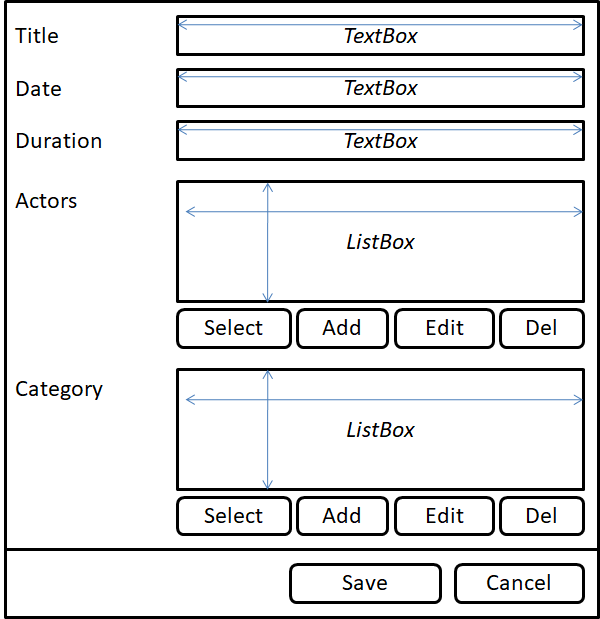
The following figure shows the design of another window with a slightly more complicated construction. There are two elements that change their vertical and horizontal size (actors and categories). Please note that the data that they display is associated with the Movieobject by association. Typically, in these types of situations (when we show other objects available through association) we will use ListBox.
Different ways of implementation
As we have seen in the previous lesson, designing a good GUI is not a simple matter. Similarly, its implementation is usually quite complicated as well. In general, we can distinguish two most popular approaches to this issue: manual (the programmer writes the code for particular widgets separately) and automated (with a dedicated editor).
Manual GUI implementation usually is:
- time-consuming,
- error-prone,
- complicated.
Consequently, in most cases you should use visual editors that allow you to create GUIs from the components and connect them to each other. But remember that sometimes you may need to make manual modifications even though you use the editor. Therefore, it is important to check how the editor treats the generated code. It is mainly about determining whether manual adjustments are reflected in the visual design. If not, and the entire code is regenerated on the basis of a graphic design, then usually such editor will not be useful for us. Also check that the generated code must have some particular structure or naming. It is better not to have such requirements.
Another way to create a GUI is the declarative approach. The programmer concentrates on what should be done, not how to achieve it. As in the case of SQL, for example, we remain at a higher level of abstraction without delving into implementation details. All ungrateful work is done by a specialized library, which, by building data and some additional information, generates the appropriate widgets. More on this subject will be on the next lesson.
Library selection criteria
Some platforms allow you to work with a variety of alternative GUI libraries. In such situations, it is important to make an informed choice taking into account the following factors:
- Ease of use. Probably one of the most important criteria. Sometimes complicated usage is the result of a great deal of potential and, after all, you should consider using it anyway. In other situations, for example, it is only from some historical past and better search for a more modern framework.
- Modifiability. Specifies the possible degree of influence on appearance and behavior of a given solution. If we want to create a typical interface, it will not matter to us.
- Efficiency. In typical applications, given the high performance of modern hardware, we do not have to worry so much about it. Of course, if you plan to display thousands of items in eg
ListBox(a bad idea), then you should look for the most "native" solution, mostly created in C ++. - Cross-platform. It only matters if we want to run our program on different hardware platforms and/or operating systems. There are many solutions on the market that allow this (see below).
- Price. Fortunately, for almost any platform, there are free solutions and they are usually the primary choice. Sometimes, we can buy some add-ons (such as controls) that offer greater visibility, improved appearance or better performance.
- Aesthetics. Basic versions of libraries generally offer a unified (compatible with the operating system) appearance. In particular, modern solutions (Windows Phone, MS WPF, Qt, Android) offer a wide range of possibilities, conceptually similar to CSS stylesheets (for example, for Java - Look&Feel.
It is worth noting that the set of components used to build the interface is quite similar in all languages and libraries. However, there are different layout managers, which are the special components responsible for the placement of individual widgets in the window. This is important when the window can change its size. In such a situation, the position and size of individual elements should be adjusted accordingly. It seems that one of the best managers is "anchor" used in MS .NET and lately also in Java.
GUI libraries for Java
Below is a brief description of the main Java GUI libraries.
AWT (Abstract Window Toolkit)
Historically, the first library for Java was AWT (Abstract Window Toolkit; http://java.sun.com/products/jdk/awt/) published in 1995. This solution used native widgets for the platform, resulting in different looks of the same application on different operating systems. Developers could use a basic set of widgets (buttons, text boxes, menus, etc.) that respond to various events. AWT was actually a development interface between native operating system and Java application. It contained several layout managers, quite complicated to handle. It was also slow in action. You may have heard of the poor performance of Java when displaying graphics.
Swing
Two years later (in 1997), the Swing library saw the light of day (http://www.javaswing.net/) by introducing revolutionary changes. First of all, the look and behavior of widgets was determined by Java, resulting in the same appearance and behavior of the application across platforms. This was made possible by the creation of a special Java2D technology, which offered many times better performance than AWT. Widgets and installable graphic themes called Look&Feels have also been expanded. This approach has definitely improved platform independence and increased extensibility. The whole library has become component oriented using them to draw fragments of controls such as borders or decorations.
The MVC pattern (Model-View-Controller) is widely used. Most widgets have their own model (defined by the Java interfaces) that influences the behavior of the data. You can also use their basic implementation provided by Swing.
The Swing supports two categories of events: "physical" (eg mouse click) and logic ones related to the model (eg adding a row of data to a table or selecting an item). Of course it is better to work with the latter category.
Swing was the primary and default Java GUI library for desktop application. Currently (since Java 8) it is replaced by JavaFX.
JavaFX
JavaFX has been introduced as a modern way of working with the GUI. It uses the declarative approach similar to that used on Android. Interface is defined in a special language that utilizes XML.
Like its predecessor, this library uses the MVC pattern. Because the definition of GUI is in XML files, the division is even stronger than in Swing.
The creators also thought of improving the appearance and applied a well-known approach with CSS files. In addition, we can work with a web designer who is not a developer, but will be able to modify the look of the application.
More information can be found in the official Java documentation.
SWT (Standard Widget Toolkit)
An alternative to Swing is the SWT library (Standard Widget Toolkit; http://www.eclipse.org/swt/) originally developed by IBM, and is currently being developed by the Eclipse Foundation (their flagship IDE is using SWT). The solution utilizes the native capabilities of the operating system to draw the controls, which improves their drawing speed. Therefore, you can meet with the opinion that it is much faster than Swing. To some extent, this is true (drawing the controls), but overall performance is negatively affected by the need to "translate" the data from Java into the format "understood" by the native controls.
Programs that use SWT are portable, but require a dedicated SWT implementation for each operating system (even for Windows x86 and x64). It is not always available for all platforms on which the JVM exists.
SWT does not use MVC, but provides the ability to collaborate with the JFace library, which supports this approach. However, because of the use of native widgets, their customization is not always easy (as opposed to Swing).
Another drawback, especially for languages like Java, is the need to manually release the resources used by widgets: dispose(). In practice these are usually subclasses Resourcesuch as Image, Colorand Font.
Custom GUI library
Sometimes it may be necessary to implement a custom graphical user interface. We do not mean to add a component to eg Swing, but develop the entire framework that will replace it. It's a good idea to start by reviewing existing solutions and trying to select one with an optional modifications. Thanks to this we can gain a whole new look and behavior with much less work.
If it turns out that we have to create such a library ourselves, we have to make some important decisions that affect our further actions:
- Choice of event model: "physical" or "logical". Both have their advantages and disadvantages, but it seems that the more universal is the latter. Thanks to it, we will be able to abstain from the way of doing things (mouse, keyboard) and focus on its semantics (eg selecting an item from the list);
- Widget set. Due to the laboriousness, find out what we really need. Let's also enjoy the benefits of objectivity: larger controls (MessageBox) can consist of smaller (previously created) , e.g. button, label, window);
- How to draw the controls. This is quite a laborious part because we usually have only so-called basic operations like drawing lines, rectangles, etc. You also need to consider the way windows are scaled and thus drawn regardless of the screen size or resolution;
- Link events to their operation. We need to determine how we will combine business logic with individual controls. For this purpose, we can define, for example, some programming interfaces that need to be implemented by the appropriate classes.
As you can see from the above, quite sketchy argument, this is quite a complicated task, which means the need to work at a very low level of abstraction. For this reason, if possible, better use existing solutions.
GUI implementation - remarks
During many years of my professional work, I have seen a lot of different implementations of graphical user interfaces. Unfortunately, in some of them, the same, relatively small, but significant list of errors was repeated:
- Adding
Stringinstead of objects to widgets. It's the absolute number one on the wrong list. This approach means that we first add text (for example, the name of the product) and then find the object (usually thegetSelectedIndex()method) to do something about it. Same drawbacks. And if we immediately add an object (such as our createdProductclass) instead of its name, then we could usegetSelectedValue()and immediately get an instance of the added class (without any search). What to do to get the objects properly displayed? Of course, override thetoString()method in the business class. Let's remember: add an object, not a text to a widget! - Placing business code directly in event handling methods. Why this is not a good approach? Because usually the same functionality we can run in different ways, from different places in the program. Therefore, it is best to separate it to some business method and call it from listener.
- Share listener without a good reason. This approach will lead to unreadable code: a big method with many
ifconditions, such as the source of the event and the execution of the various actions. Instead, it is better to use dedicated event handlers for each widget. Exceptions may include collections of controls with identical operating procedures. - Use physical/hardware events/listeners (such as
MouseListener) instead of "logical" (egactionPerformed). What is the problem? Well, when we react to clicking a mouse in egListBox'ie it will all work fine but only in conjunction with the mouse. And yet the user can (and often does) use the cursor keys and eg Enter key.